Open a Microsoft Project file on a Mac
November 14, 2026
Microsoft Project's desktop app runs on Windows. On a Mac, GanttOWN can take the XML export of that plan and save it as a .gantt file you open from Finder.
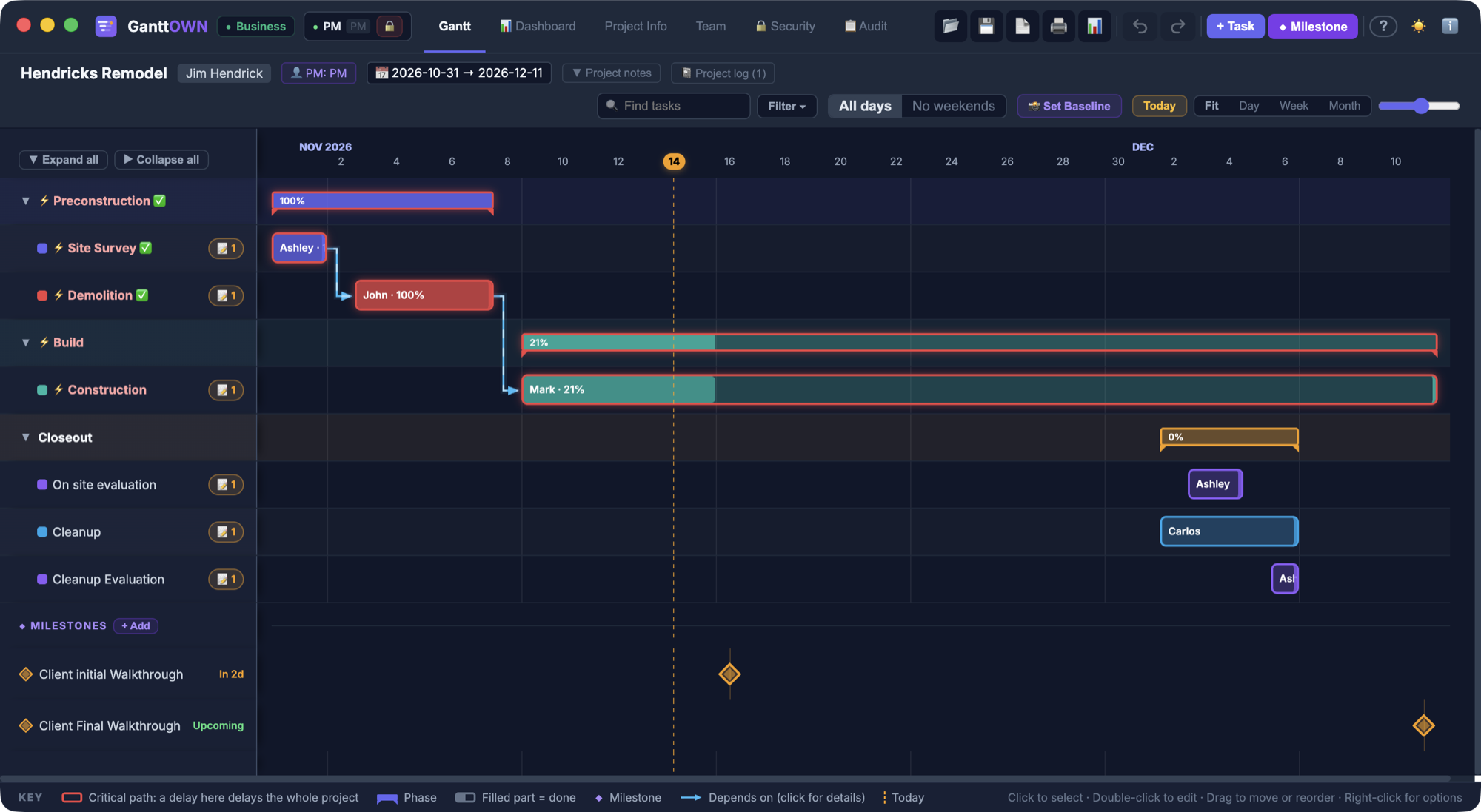
Save the plan as XML
- In Microsoft Project, choose File → Save As → XML.
- Move that .xml file to the Mac.
- In GanttOWN, choose File → Import, or press ⇧⌘I, and pick the .xml file.
- Read the summary, then save the new project.
A .mpp file does not import. The file dialog lists .mpp so you can select it, and GanttOWN then tells you to save it as XML in Microsoft Project first.
What comes across
The XML import brings phases, owners, progress, dependencies, and milestones. Column names are matched loosely, so Task, Name, and Title all count as the task name. People on the plan become team members, up to the limit of your license: 5 on Solo, 20 on Team, 150 on Business.
Excel and CSV use the same command
File → Import also reads .xlsx, .xls, and .csv. Dates are read as dates, and the same column-name matching applies. After import, the project is a normal .gantt file.
What you can do with it after that
- Double-click the .gantt file in Finder. The plan stays on the Mac and works offline.
- If a task runs late, everything that depends on it moves later. Moving a task earlier does not pull the others with it.
- The critical path is outlined in red. Weekends and holidays can come off the calendar.
- Export a PDF report, an Excel sheet, or a PNG, or print with ⌘P.
If you are deciding between desktop tools on a Mac, the OmniPlan comparison and the Merlin comparison cover price and what GanttOWN leaves out. For how a Gantt chart works in the first place, start with the guide.
Bring the plan over, then own the file
macOS 13 or later. Buy once, import the XML, and keep the schedule on your Mac.
See pricing →